
Stay connected to BiWaze therapy at home.
Arc Connect is a mobile app that helps patients and caregivers track therapy on compatible BiWaze systems, set goals and reminders, and choose what to share with their care team.
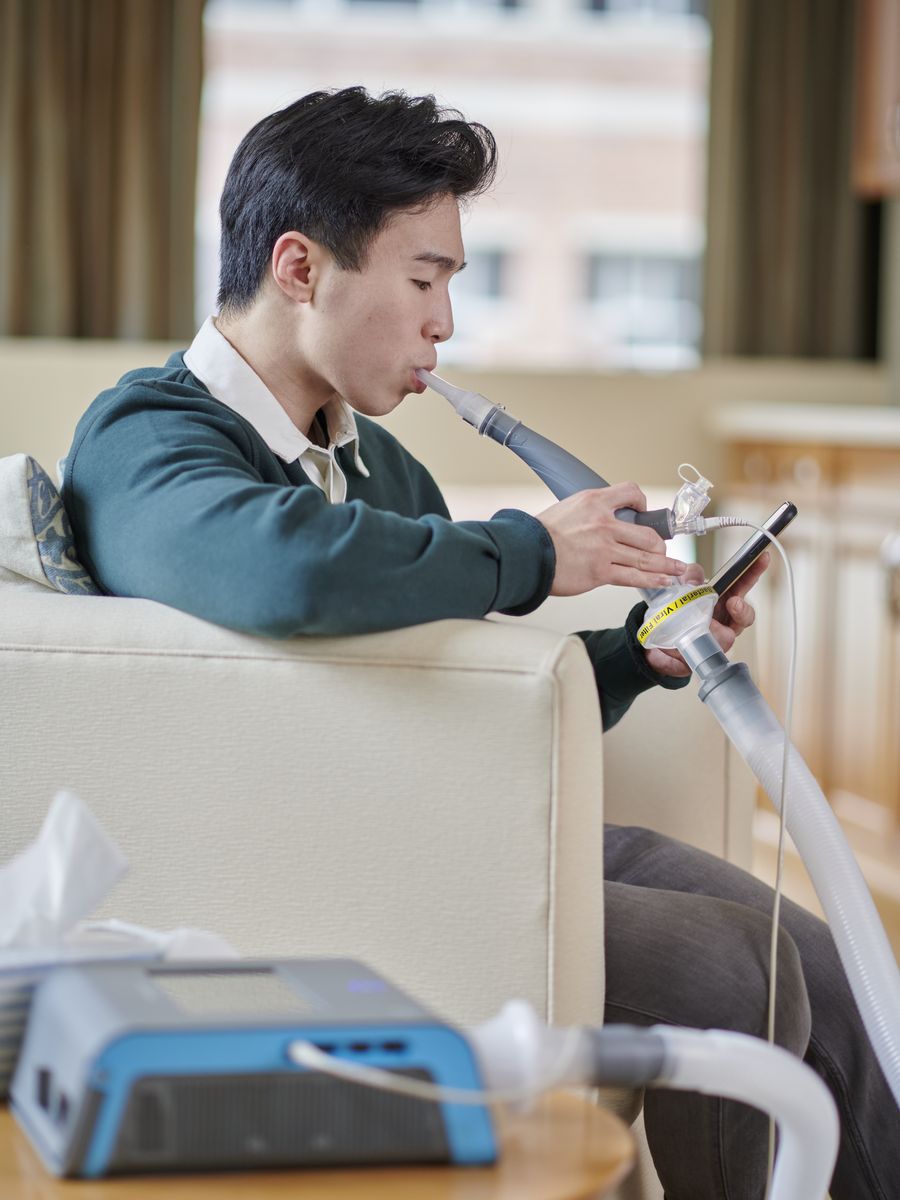
Find the information most relevant to you.
Patients & Caregivers
Stay engaged with compatible BiWaze therapy at home. View progress, set goals and reminders, and manage your therapy routine.
Learn about the app →Healthcare Professionals & HMEs
Help patients get set up, and receive the therapy information patients choose to share from the app.
View professional information →Looking for guides, checklists, or brochures? Go to resources and downloads
A digital support app for BiWaze therapy.
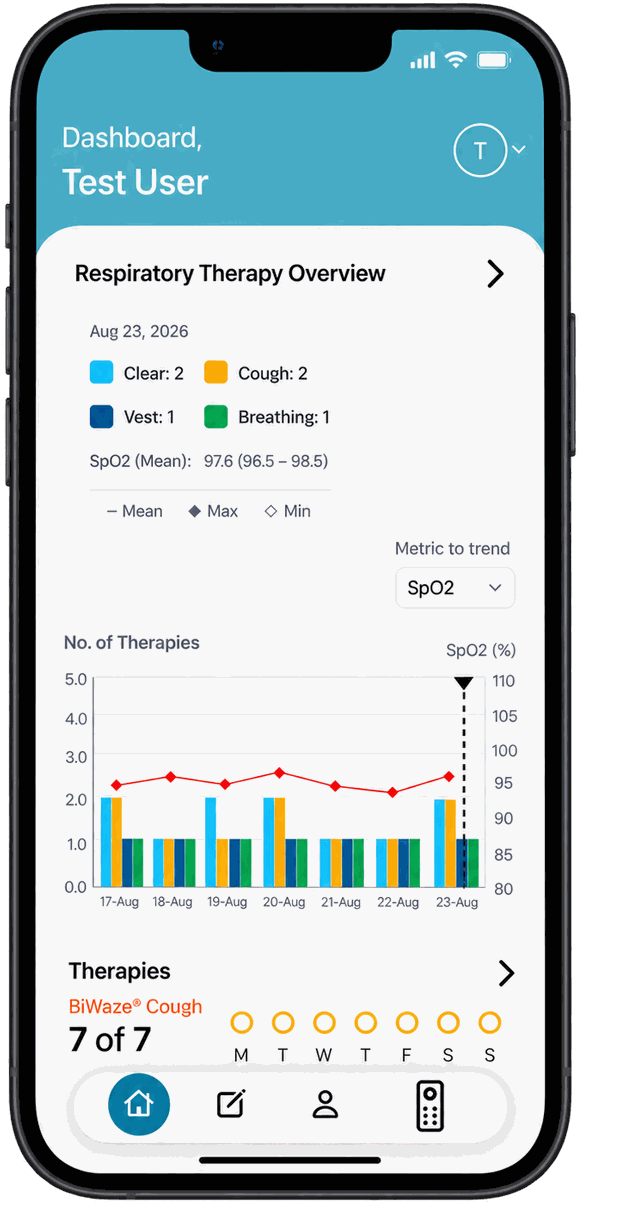
Therapy from compatible BiWaze systems records automatically, so progress is easy to follow day to day.

Link a BiWaze system
Connect a compatible device with a quick QR scan.
Track therapy activity
Sessions record automatically from compatible systems.
View progress & insights
See trends and progress on a simple dashboard.
Choose what to share
Decide what to share with caregivers or your care team.
Support for respiratory therapy at home.
Respiratory therapy at home can involve new routines, goals, and daily steps to remember. Arc Connect gives patients and caregivers a simple way to stay engaged and view progress from a phone.
- Create an account and link a compatible BiWaze system
- Set goals and reminders
- View your dashboard and review insights and trends
- Manually add other respiratory therapies
- Share therapy reports with your care team using your phone’s sharing tools
- Choose your sharing preferences
Getting started with Arc Connect.
Your home health team or equipment provider can help you get set up.
Download the app
From the App Store or Google Play.
Create your account
With phone, email, Apple, Google, or Facebook.
Link your BiWaze system
Scan the QR code shown on the device.
Set goals & reminders
Build your routine.
View progress
Track therapy over time.
- A phone with iOS 16.0+ or Android 9.0+
- Access to text or email for a verification code
- Your home Wi-Fi name and password
- Your BiWaze device, powered on and connected to Wi-Fi
- BiWaze Cough software 1.23.0 or newer, or BiWaze Clear software 1.11.0 or newer

Support engagement. Access shared therapy information.
Arc Connect is a patient-facing app. For clinicians and HMEs, it can support onboarding, reinforce therapy routines, and provide access to patient-shared information when sharing is enabled.
- Help patients get set up with step-by-step setup guides
- Receive therapy information patients choose to share, through Arc Connect or reports exported from their phone
- Reinforce therapy routines with the goals, reminders, and progress patients see in the app
Provider Portal. Centralized visibility into patient therapy data, adherence, and follow-up across patients and locations.
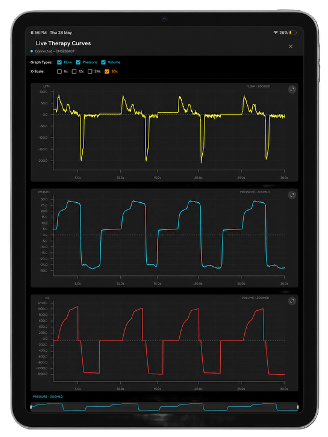
View live waveforms with compatible BiWaze Cough systems.
With Arc Connect Remote Control, clinicians and care teams can view live flow, pressure, and volume waveforms during therapy. Afterward, they can fetch device data to review insights, adherence, and titration-related information.
Live waveforms
Flow, pressure, and volume during therapy.
Real-time context
See therapy as it happens.
Post-session insights
Fetch device data afterward.
Guides and setup materials.
Download materials for setting up and using Arc Connect. Answers to common questions are in the FAQ below.
For patients & caregivers
- PDFDownload
Arc Connect Overview Flyer
What the app does and how it can help.
- PDFDownload
Setup Guide: Connecting BiWaze Cough
Set up the app and link your BiWaze Cough.
- PDFDownload
Setup Guide: Connecting BiWaze Clear
Set up the app and link your BiWaze Clear.
- VIDEOWatch ↗
Arc Connect Overview Video
A short animation of how the app works.
Arc Connect FAQ.
For patients & caregivers
Getting started
What is Arc Connect?
Arc Connect is a mobile app designed to help you manage and track your prescribed respiratory therapy at home. It helps you track therapies, see progress toward goals, access tips and educational content, and (optionally) connect to a compatible BiWaze system.
Is Arc Connect a medical device or a substitute for my clinician?
No. Arc Connect is intended to support therapy tracking and engagement. It is not intended to diagnose, treat, or monitor medical conditions, and it does not provide alarms or clinical decision support. It also does not change your prescribed therapy settings.
Is Arc Connect free?
Yes. Arc Connect is a free app for iPhone and Android.
Where do I download Arc Connect?
Download Arc Connect from the Apple App Store or Google Play Store. Search for “Arc Connect.”
What phones are supported?
- iOS 16.0 and later
- Android 9.0 and later
Do I need a BiWaze device to use Arc Connect?
No. You can use Arc Connect to track some therapies manually (for example, breathing routines or vest treatments). If you have a compatible BiWaze system, you can link it for additional features and therapy insights.
Account and access
Can I try Arc Connect without creating an account?
Yes. You can use “Visit as a Guest” to explore the app and see sample data. Guest mode can also be used to access Remote Control with a compatible BiWaze Cough system.
In Guest mode you may not be able to save your data if you change phones or reinstall the app, connect to your health app, follow/share data with another Arc Connect user, or sync therapy data from a connected BiWaze system.
How do I create an account?
From the Sign In screen, choose Register and create an account using one of the available methods:
- Phone number (verification code sent by text message)
- Email (verification code sent by email)
- Google, Facebook, or Apple sign-in
You’ll be asked to agree to the Terms of Use and Privacy Policy during registration.
I didn’t receive my verification code. What should I do?
- Double-check the phone number or email address you entered (including country code for phone).
- Check spam/junk folders if you registered by email.
- Make sure you have cell service or internet connectivity.
- Try requesting a new code. If it still doesn’t arrive, contact support (see Support section).
Connecting your BiWaze system (optional)
Which BiWaze systems work with Arc Connect?
- BiWaze Cough with software version 1.23.0 or newer
- BiWaze Clear with software version 1.11.0 or newer
Remote Control is currently not available with BiWaze Clear.
How do I link my BiWaze system to the app?
Linking requires your BiWaze system to be powered on and close to your phone.
- In the app, select the type of BiWaze system you have and follow the prompts.
- On the BiWaze system, locate the Arc Connect QR code (the app will show where to find it).
- Confirm Arc Connect is enabled on the BiWaze system (toggle On).
- Scan the QR code using the Arc Connect app.
- After linking, confirm the serial number shown in the app matches your BiWaze system.
Can I link more than one BiWaze device?
You can link one BiWaze Cough system and one BiWaze Clear system to your account at the same time. If you link a new device of the same type, the previous one will be unlinked automatically, but your therapy history remains saved to your account.
Using the app
What is the Dashboard?
The Dashboard provides a weekly summary of therapies and progress toward your goals. It also provides access to Insights.
Tip: Ensure your phone is connected to Wi-Fi so data can synchronize with Arc Connect.
What are Insights?
Insights show therapy details and adherence from your connected BiWaze system and can display them alongside health information synced from your phone’s health app. You can view Insights by year, month, week, or day.
Can I track other therapies in Arc Connect?
Yes. You can manually track additional respiratory therapies (for example, breathing routines or vest treatments) and set goals for each type you track.
Can I connect Arc Connect to Apple Health or Google Health?
Yes. During setup you can connect to your phone’s native health app and choose what information to share. After you grant permissions, any changes to what is shared are managed in the Apple Health or Google Health settings on your phone.
What are Reflections? Are they private?
Reflections let you record brief notes (and optionally images and feelings) to track progress or share support with people you follow. You can choose whether a Reflection is private or viewable by your followers.
Because Reflections may include personal or health information, share only with people you trust.
Sharing and privacy
Can I share my therapy information with a caregiver or care team?
Arc Connect includes features to follow/share data with other Arc Connect users (for example, caregivers), and you can also share BiWaze-related information using your phone’s native sharing tools (reports/exports). Sharing is optional and controlled by you.
What security protections does Arc Connect use?
Arc Connect uses security features intended to protect your data, including data encryption, unique keys for Bluetooth pairing, and application-level encryption when transmitting data.
What should I do to keep my account and data safe?
- Use a strong password and don’t share it.
- Enable a PIN or biometric security on your phone.
- Keep your phone’s operating system and Arc Connect updated.
- Avoid unsafe modifications to your phone’s operating system.
- Consider enabling remote data wipe on your phone in case it’s lost or stolen.
- Log out of Arc Connect before handing your phone to someone else.
- Delink your BiWaze device before transferring ownership.
Remote Control (BiWaze Cough only)
What is Remote Control and how does it work?
Remote Control lets you start and pause therapy on compatible BiWaze Cough systems using Bluetooth. You can also view real-time curves during therapy and view/save therapy insights.
Remote Control data is stored locally on your phone and is not uploaded or transmitted through Arc Connect.
How do I use Remote Control?
- Tap the Remote Control icon in the app.
- Make sure Bluetooth is enabled on your phone and on the BiWaze Cough system.
- Tap Connect and choose your system from the list of serial numbers.
- Confirm the serial number matches your BiWaze Cough system and the status shows Connected.
- Tap Play to start therapy. You can Pause to temporarily stop or End to finish the session.
- Use the graph to observe real-time curves.
Note: The app will automatically connect to the last connected system when it is detected via Bluetooth.
Any safety tips for Remote Control?
- Confirm you are ready before starting therapy.
- If therapy starts unintentionally, press Pause immediately.
- Keep your phone within Bluetooth range and avoid moving while sending commands.
- Disconnect Bluetooth when Remote Control is not in use.
Troubleshooting and support
My BiWaze system won’t link to the app. What are common fixes?
- Make sure the BiWaze system is powered on and close to your phone.
- Confirm Arc Connect is enabled on the BiWaze system (toggle On).
- Try scanning the QR code again in good lighting.
- Check that your phone meets the minimum OS requirements and that Arc Connect is updated.
- Ensure your phone is connected to Wi-Fi for synchronization.
Remote Control won’t connect over Bluetooth. What should I try?
- Confirm Remote Control is supported only for BiWaze Cough (not BiWaze Clear).
- Turn Bluetooth off and back on, then reconnect.
- Stay close to the device and avoid moving during connection.
- If the app shows multiple serial numbers, select the one that matches your device.
How do I contact support?
You can contact your home medical equipment company directly, or contact ABM at support.arc.connect@abmrc.com.
For healthcare professionals & HMEs
Platform overview and intended use
What is Arc Connect (current version)?
Arc Connect is a patient-facing mobile app intended to help patients and caregivers manage and track prescribed respiratory therapy in the home, set goals, view progress, capture notes and reflections, and optionally connect to compatible BiWaze systems for therapy session information.
Is Arc Connect a clinical decision support tool or a monitoring/alarm system?
No. Arc Connect is not intended to diagnose, treat, or monitor disease, and it does not provide alarms or clinical decision support. It does not replace prescribed therapy settings or clinical judgment.
Does Arc Connect change therapy settings on BiWaze devices?
No. The current Arc Connect app does not modify prescribed therapy parameters; therapy settings are configured on the BiWaze system. Future phases may expand capabilities.
Current capabilities clinicians / HMEs can expect
What information can patients track in Arc Connect?
- Therapy completion and progress toward goals (Dashboard)
- Session history and trends (Insights), including details from connected BiWaze systems
- Manually logged respiratory therapies (e.g., breathing routines or vest treatments)
- Optional synced health data from Apple Health or Google Health (if the patient enables it)
- Optional journaling/notes in Reflections (patient-controlled visibility)
How can clinicians / HMEs receive patient information?
Arc Connect supports patient-controlled sharing. Patients can share data with other Arc Connect users (e.g., caregivers or clinicians) and can send BiWaze-related information using their phone’s native sharing (reports/exports).
Is there a clinician / HME portal?
Arc Connect is being rolled out in phases: a patient mobile app first, followed by a future planned HME/portal phase that will enable broader remote monitoring and reporting workflows. That portal phase will require additional regulatory clearance (e.g., FDA 510(k)) and full HIPAA compliance.
Patient onboarding and setup
What are the minimum phone and app requirements?
- iOS 16.0+ or Android 9.0+
- Arc Connect downloaded from Apple App Store or Google Play
- For BiWaze linking: BiWaze system powered on and nearby for QR code linking
- For data sync: phone connected to Wi-Fi (recommended)
How do patients create an account?
Patients can register using a phone number (SMS verification), email (email verification), or social sign-in (Google/Facebook/Apple). They must agree to Terms of Use and Privacy Policy during registration.
Can patients use Arc Connect without an account?
Yes, via Guest mode. Guest mode is useful for demo/exploration and Remote Control, but it may not allow data persistence across reinstalls/phone changes, health app connection, social sharing/following, or BiWaze therapy data synchronization.
Remote Control (BiWaze Cough only)
Which BiWaze devices is Remote Control available for?
Remote Control is currently available for compatible BiWaze Cough systems only.
Where is Remote Control data stored?
Remote Control data is stored locally on the patient’s phone and is not uploaded or transmitted through Arc Connect.
What safety guidance should we provide for Remote Control?
- Confirm the patient is ready before starting therapy.
- If therapy starts unintentionally, press Pause immediately.
- Keep phone within Bluetooth range; avoid moving while sending commands.
- Disconnect Bluetooth when Remote Control is not in use.
Privacy, security, and consent
What security features are described for Arc Connect?
- Data encryption
- Unique keys for Bluetooth pairing
- Application-level encryption for data transmission (in addition to Bluetooth security)
What patient best practices should we reinforce?
- Use strong passwords; don’t share credentials.
- Enable device PIN or biometric lock.
- Keep OS and app updated.
- Avoid unsafe OS modifications and public/unknown networks when possible.
- Use remote wipe capabilities for lost/stolen devices.
- Log out and delink devices before phone transfer or device ownership changes.
Troubleshooting and escalation
What are the most common setup issues and quick checks?
- Registration: verify phone number/email and check for verification code delivery issues.
- BiWaze linking: confirm device is on, nearby, Arc Connect enabled, and QR code is scannable.
- Sync: confirm phone is connected to Wi-Fi and app is updated.
- Remote Control: confirm Bluetooth on, correct serial number selected, and patient is within range.
What information is helpful to collect before contacting support?
- Phone type and OS version (iOS/Android)
- Arc Connect app version (if available)
- BiWaze device type and software version
- Brief description of the issue and when it occurs (registration, linking, sync, Remote Control)
- Any error messages/screenshots (if the patient can share)
How can I contact ABM support?
In the United States: 877-226-7201 | support.arc.connect@abmrc.com
Download Arc Connect.
Available for compatible BiWaze therapy systems. Your home health team or equipment provider can help you get set up.
App Store
Google Play